Autodesk Fusion autocomplete in Zed
If you write Autodesk Fusion 360 Python add-ins and you've switched to the Zed editor, you've probably hit the wall and miss autocomplete. Here is how to fix it.
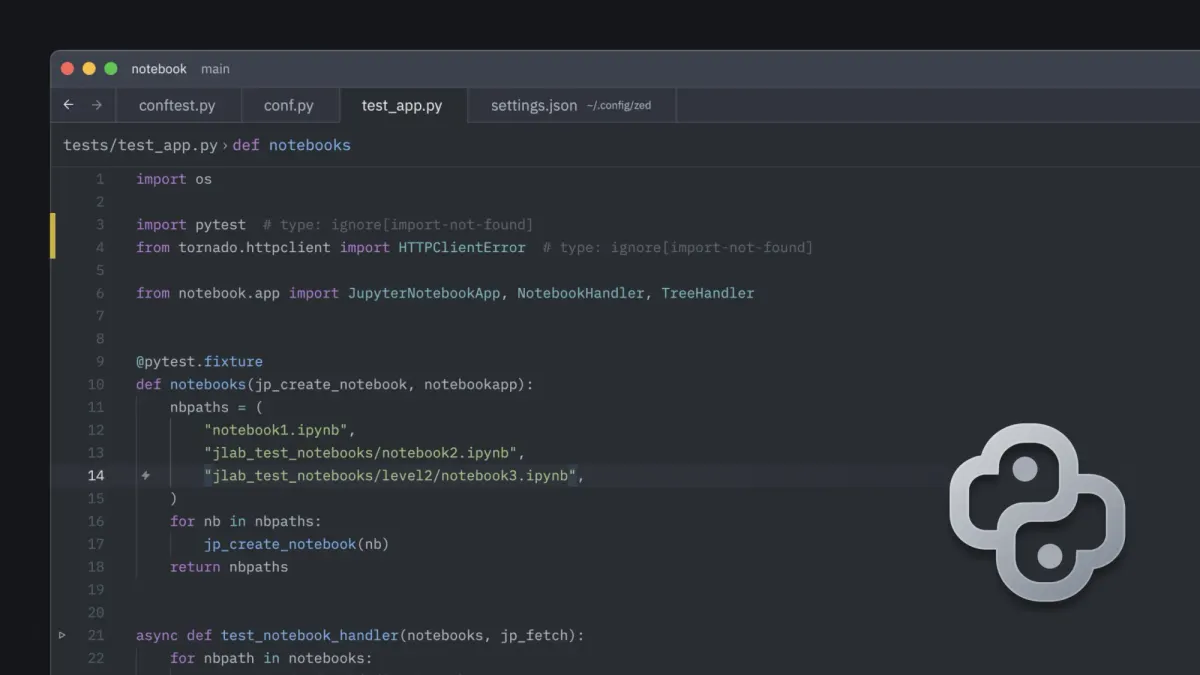
If you write Autodesk Fusion 360 Python add-ins and you've switched to the Zed editor, you've probably hit the wall I did: you type adsk.core. and nothing happens. No completions, and a yellow squiggle under import adsk.core that reads "Import could not be resolved." The API is right there on your disk — Fusion ships it — but the editor has no idea where to look.
This post walks through fixing that entirely by hand: a few edits to one config file, no scripts, no extensions to install. It takes about five minutes, and along the way I'll explain the handful of non-obvious things that, if you get them wrong, leave you staring at a config that looks right but does nothing.
Everything here works the same on Windows and macOS — I'll call out where the paths differ.
Why there's no extension for this
On VS Code, Fusion devs install HiceS/fusion-360-helper, an extension that auto-configures the Python tooling so adsk resolves. The natural question is "where's the Zed equivalent?" There isn't one, and there can't really be one: Zed's extension model is deliberately narrow. Extensions are Rust compiled to WebAssembly, sandboxed, and limited to language grammars, language-server adapters, themes, slash commands, and MCP servers. There's no API for "run some code on startup, detect an install, and write the user's settings."
But here's the thing — that extension's actual value is one sentence long:
point the Python language server at the folder where Fusion's adsk library lives. Everything else it does (dialogs, status bar, scaffolding) is convenience. And that one valuable thing is pure configuration in Zed. You don't
need an extension. You need to add a few lines to settings.json. That's the whole job.
The shape of the fix
A Python language server resolves import adsk.core by searching a list of folders. We just need to add Fusion's library folder to that list — pyright calls this setting extraPaths. So the plan is:
- Find the folder on your machine where Fusion's
adskpackage lives. - Add it to Zed's
settings.jsonunder the right language-server key. - Restart Zed.
Simple — but each of those three steps has a trap. Let me take them in order.
Step 1: Find Fusion's adsk library folder
Fusion installs itself into a content-addressed folder — a directory whose name is a long hash like 4bca736941837d3e42bba21bb36b9891e34b2fce. The catch that bites everyone: that hash changes every time Fusion updates. So you can't just copy a path from a forum post; you have to find yours, and you'll have to update it again after a Fusion update (more on living with that at the end).
Open the deploy folder in your file manager:
- Windows:
%LOCALAPPDATA%\Autodesk\webdeploy\production\
(paste that into the Explorer address bar) - macOS:
~/Library/Application Support/Autodesk/webdeploy/production/
You'll likely see several hash-named folders — a typical machine accumulates ten or so over time. Only one is live. Here's the trick to spot it: the live deploy is the one that still contains a working Python interpreter. When Fusion updates, it guts the old deploys and removes their Python folder, so in practice exactly one survives.
Look inside each hash folder for the interpreter:
- Windows: the live one has
Python\python.exeinside it. - macOS: the live one has a
Autodesk Fusion 360.appbundle with a real
Python underContents/Frameworks/Python.framework/Versions/Current/bin/python.
Once you've found the live deploy, the adsk library lives at this subpath inside it:
- Windows:
API\Python\packages\adsk\defs - macOS:
Autodesk Fusion 360.app/Contents/API/Python/packages/adsk/defs
The single most important check. A language server only treats adsk as a
real, importable package if there's an __init__.py inside it. So before you go further, confirm this file exists:
- Windows:
...\packages\adsk\defs\adsk\__init__.py - macOS:
.../packages/adsk/defs/adsk/__init__.py
If it's there, you've got the right folder. The path you'll put in your config
is the defs folder — the directory that contains the adsk folder, not theadsk folder itself.
Step 2: Edit Zed's settings.json — under the right key
Open your Zed settings (command palette → zed: open settings, or edit the file
directly):
- Windows:
%APPDATA%\Zed\settings.json - macOS:
~/.config/zed/settings.json
Now the trap that cost me the most time. You might assume Zed's Python language server is pyright. It isn't. As of recent Zed, the bundled server is basedpyright (a pyright fork). This matters enormously: if you put your settings under lsp.pyright, they are silently ignored, because that server isn't the one running. No error, no warning — it just does nothing, which is indistinguishable from "my edit didn't take."
You can confirm which server is live by checking the Zed log and looking for abasedpyright/langserver.index.js line:
- Windows:
%LOCALAPPDATA%\Zed\logs\Zed.log - macOS:
~/Library/Logs/Zed/Zed.log
The config goes under lsp.basedpyright. Here's the block to add — substitute your live deploy hash (and, on macOS, the app-bundle path). Use forward slashes even on Windows; pyright accepts them and you dodge JSON's backslash-escaping headache.
{
  "lsp": {
    "basedpyright": {
      "settings": {
        "python": {
          "pythonPath": "C:/Users/you/AppData/Local/Autodesk/webdeploy/production/<hash>/Python/python.exe"
        },
        "basedpyright.analysis": {
          "extraPaths": ["C:/Users/you/AppData/Local/Autodesk/webdeploy/production/<hash>/API/Python/packages/adsk/defs"]
        },
        "python.analysis": {
          "extraPaths": ["C:/Users/you/AppData/Local/Autodesk/webdeploy/production/<hash>/API/Python/packages/adsk/defs"]
        }
      }
    }
  }
}
On macOS the two extraPaths values become something like:
/Users/you/Library/Application Support/Autodesk/webdeploy/production/<hash>/Autodesk Fusion 360.app/Contents/API/Python/packages/adsk/defs
A few notes on why the block looks like this:
pythonPathpoints at Fusion's own interpreter. This gets you the standard
library matched to the Python version Fusion actually runs, so your completions
and type checks reflect Fusion's environment, not some other Python on your
machine.- Both
basedpyright.analysisandpython.analysiscarry the sameextraPaths. This is deliberate belt-and-suspenders: basedpyright reads its ownbasedpyright.analysisnamespace, whilepython.analysisis the generic
pyright namespace. Setting both means it works whether or not the fork honors
the generic key, and it keeps working if you ever switch to plain pyright.
If your settings.json already has other settings (it probably does), just merge
this lsp key in alongside them — don't replace the whole file. If you already
have an lsp key for some other language server, add the basedpyright entry
inside the existing lsp object rather than creating a second lsp key (a
duplicate key is invalid and one will be ignored).
Step 3: Save without a BOM, then restart
This last gotcha is sneaky and Windows-specific. pyright/basedpyright silently
reject a config file that starts with a UTF-8 byte-order mark (BOM) — it reports
the file as unparseable and behaves as though you set nothing. Identical symptom
to every other failure mode: no completions, no clue why.
The good news: if you edit settings.json inside Zed itself (or VS Code), you
don't have to think about this — both save BOM-less UTF-8 by default, and so do
macOS text tools. The trap only springs if you generate or rewrite the file with
Windows PowerShell — Out-File -Encoding utf8 in PowerShell 5.1 prepends a
BOM. So: edit the file in your editor, not via a PowerShell redirect, and you're
fine.
Save, then restart Zed — or run editor: restart language server from the
command palette to avoid a full restart.
Verifying it worked
Open a .py file inside your add-in project and type adsk.core.— you should
get a completion list, and the squiggle under import adsk.core should be gone.
Want to prove the path is correct independently of Zed? Drop a tiny pyrightconfig.json in your project root that points at the same defs folder and run pyright/basedpyright on a file that imports adsk.core from the command line — you should see 0 errors. Which brings me to a useful fallback…
A nice fallback: pyrightconfig.json in your project
There's a known Zed quirk where LSP settings forwarding to basedpyright is occasionally ignored. If you've triple-checked everything and completions still won't come, sidestep Zed entirely. Put a pyrightconfig.json in your add-in project's root folder:
{
  "extraPaths": ["C:/Users/you/AppData/Local/Autodesk/webdeploy/production/<hash>/API/Python/packages/adsk/defs"]
}
basedpyright reads this file directly — Zed isn't in the loop at all. It's also tool-agnostic: any pyright-based editor or CLI will honor it. Top-level extraPaths, same defs path, and again — no BOM.
I actually like keeping a pyrightconfig.json per project even when the Zed
settings work, because it travels with the repo and documents the dependency.
Living with the changing hash
The one ongoing annoyance is that Fusion's deploy hash changes on every update, so the path you carefully pasted will eventually go stale and completions will quietly stop. When that happens, it's the same fix: re-open the webdeploy folder, find the new live deploy (the one with a working interpreter), and update the hash in your config. Takes thirty seconds once you know the drill.
You might be tempted to dodge this with a wildcard — ...\production\*\API\Python\packages\adsk\defs. Don't bother: pyright treats the * as a literal folder name in extraPaths. There's no glob expansion, so it resolves to nothing. Manual updates it is — or a tiny refresh script if you do this often, but that's a topic for another post.
The short version
If you just want the checklist:
- In
webdeploy\production\, find the hash folder that still has a Python
interpreter — that's your live deploy. - Your library path is
<deploy>\API\Python\packages\adsk\defs; confirmdefs\adsk\__init__.pyexists. - Add an
lsp.basedpyrightblock to Zed'ssettings.json(notlsp.pyright),
withpythonPathandextraPaths(in bothbasedpyright.analysisandpython.analysis), using forward slashes. - Save it BOM-less (just edit in Zed) and restart the language server.
- After a Fusion update, repeat step 1 and update the hash.
Five minutes, no extension, and adsk. completes the way it should.


Comments ()